For clubs For athletes Guide Pricing About Contact Support
← User guide Part 4 · Owners

For club owners

An owner runs one club. You can do everything a coach can do. Read the coach guide; this part covers owner extras.

Your tabs are Today, People, Schedule, Finances and Club. The extras are the Club tab, gun inventory, full finances, billing, role changes, and privacy tools.

Setting the club up, fast

The setup wizard takes you to a working club. It opens as soon as you create the club, and you can reopen it at any time from your avatar → Club setup.

Five short steps: club details, ranges and lanes, opening hours, club guns, and inviting athletes. Skip any of them and come back later: the wizard reopens on the first step still to do. When you finish, it shows what is done and what was skipped, and each line opens its step.

If you registered on this website, the emailed link signed you in without a password, so the wizard first offers to set one. You need it to sign in again, here or in the phone app. Tap Not now to skip it; you are only asked once.

The club setup wizard on its first step, with the five steps named along the top and a note that every step can be skipped.

The club dashboard

Today is where you land. What needs you comes first, under one heading with a count; then the day on the range; then the numbers that tell you how the club is doing.

  • Needs you: booking requests answered in place, people asking to join, and club IDs to check.
  • On the range: who is on a lane now and until when, then each later hour as one line.
  • Four figures: active athletes against your plan's limit, fees outstanding, sessions logged this week against last, and a countdown to the next competition.
  • Booking activity and practice trends.
  • A notice when your free trial is close to its end.
  • Who needs you: the athletes worth a look today, from a waiting review request to a regular who has gone quiet.
Today for an owner: the trial notice, what needs you with booking requests answered in place, then the range and the club’s figures.
The club at a glance.
Owner only

Configuring the club

The Club tab configures the club. It has four sections: Club, Ranges, Opening hours and Inventory. The country sets your currency.

In the Club section:

  1. Check the ranges and lanes counters to confirm your setup matches the building.
  2. Set the club name and country. The country sets the currency.
  3. Set the timezone.
  4. Add the address, phone, website and social links members see.
  5. Tap Save club details.

Your club's country decides the age of digital consent for junior members.

Club setup with range and lane counters, club name, timezone and default lanes.
Club details, on the Club tab.

Ranges and lanes

Model the physical building: each range and firing point. Adding a range opens it ready for its lanes.

Creating your lanes

  1. Open the Club tab and choose Ranges.
  2. Add a range and name it.
  3. Add its lanes. Name each one exactly as labeled.
  4. Set each lane to Pistol or Rifle.
  5. Assign a coach to a lane if needed.
  6. Remove a lane or range with the delete options.
Tip Each range can have its own opening hours.
Ranges and lanes: a range card with lanes PT-1 to PT-5, each with a Pistol or Rifle toggle and a coach assignment.
Lanes, typed and with a coach on them.

Checking lane availability

Lane Availability, at the foot of Ranges, shows which lanes are free. Use it for group bookings.

The lane availability screen.
What is free, and when.

Opening hours

Under Club → Opening hours, set the hours for each range. These generate bookable slots.

Individual ranges can override them, so a hall that opens later than the rest of the club does not need the whole club moved around it.

Note Closing a day here removes its slots from the booking screen. It does not cancel bookings that already exist, so if you are closing for a holiday, look at the day board first.
Opening hours for each day of the week.
Default hours, per day.
Owner only

Assigning coaches

Roles are changed in exactly one place, and only you can do it. Coaches can invite and manage athletes, but they cannot change anybody’s role, including their own.

Promoting an athlete to coach

  1. Open the People tab.
  2. Find the person on the roster, using the search box or the filters.
  3. Promote athletes to coach. They keep their history and gain staff tabs.
  4. Use the Coaches tab to see everyone with the role.

Demoting works the same way and puts them back to athlete. Nothing they wrote is lost.

Giving a coach their athletes

Assign athletes to coaches from their roster entry.

  • The athlete and coach are notified of the assignment.
  • A coach's roster and fees apply to their athletes.
  • You can also put a coach on a specific lane in Club → Ranges.
The People tab: the roster with search and filters, its Athletes and Team segments, Invites and Categories & teams.
People: the roster, and the Coaches tab.

Inviting athletes

  1. From People, open Invite links or use step 5 of the setup wizard.
  2. Type the athlete's email and send an invite, or create a code to share.
  3. They enter it on the Join a club path to join your roster.
  • A code is good once and expires after two weeks.
  • If the person trained solo, their history comes with them.
  • You can also add an athlete directly from People.
The invite links screen for minting single-use club invite codes.
Single-use invite codes.

The roster and club IDs

You get everything a coach gets on the People tab, plus two things they do not:

  • The personal-details editor includes name, birth date, phone, IDs, and guardian details. Coaches can read but not change these.
  • Add new athletes directly.

Verify club IDs. When an athlete enters an ID, confirm it to mark it verified.

Record guardian consent. For a junior, a guardian must agree to the privacy notice.

Owner only

Club guns

Under Club → Inventory you manage the club's armoury: guns, cylinders and their service record.

Adding a gun

  1. Open Club → Inventory and tap Add gun.
  2. Pick it from the catalog of known 10m air guns, or enter a custom one.
  3. Give its serial number. Serials must be unique.
  4. Fit a cylinder with it straight away, or add one later.

Compliance and service

  • The inventory warns you 90 days before a cylinder expires, and marks one that has.
  • A needs-service flag marks guns due for work. Record work in the maintenance log.
  • Compliance shows as pills on each gun, so a problem is visible from the list rather than only inside the gun.

Cylinders

  • Cylinders are club property in their own right. Add one on its own as a spare, or with a gun to fit it straight away.
  • A gun takes one cylinder at a time. Moving a cylinder to another gun takes it off the first, and its expiry date goes with it.
  • Retire a cylinder to keep its record; delete it only if it was entered by mistake.

Assigning guns to people

Guns are not assigned from the inventory; they are assigned wherever somebody needs one:

  • On a booking, so the person gets the right gun.
  • On a guest booking for a walk-in.
  • On a competition entry, either by hand or relay seeder.

Fleet analytics shows active guns, total assignments, and a needs attention list.

The club gun inventory grouped into pistols and rifles with an Add gun button and a decommissioned section.
The armoury, grouped by type.

Maintenance logs

Equipment Logs, at the top of Inventory, keep a dated record for each club gun: cleaning, cylinder checks and repairs, with notes. Add an entry whenever work is done.

Dated equipment maintenance logs for club guns.
What was done, and when.
Owner only

Fees and finances

Under Finances, owners get the complete picture. Coaches see their own athletes' fees.

Setting up membership fees

  1. Define your plan catalog with fee names, amounts, and cadences.
  2. Use batch assignment to apply a fee to many athletes.
  3. Athletes see what they owe on their Fees screen.

Getting paid

  • Card: Athletes pay online through your connected payment account.
  • Cash: Record it when someone pays at the counter.

Both land in the same ledger, so card and cash always reconcile.

Reading the dashboard

  • Key numbers: total outstanding, collected, and cash-versus-card breakdown.
  • An aging summary at 30, 60, and 90 days.
  • A filterable ledger of every fee, exportable to CSV.
The finances dashboard with outstanding and collected totals, an aging summary and a ledger.
Outstanding, collected, and the ledger.
Owner only

Your plan

Your club runs on a tier: Starter, Professional, or Federation. The tier caps athletes, ranges, and lanes.

  • Choose or change the plan under your avatar → Billing & plan, on the web or on Android. On iPhone and iPad that screen shows your plan but does not sell one. Once the club is subscribed, a change opens Stripe's billing portal, so the club is never billed twice.
  • A new club starts on a 14-day free trial. From a week before it ends, Today says how long is left and links to Billing & plan. On iPhone and iPad it states the date only, because plans are not sold there.
  • Caps only limit new additions. Downgrading stops growth without deleting existing data.

Today shows active athletes against the limit, so the ceiling is visible long before you hit it.

The billing screen during the free trial: the days left, and the three plans with their monthly price and limits.
Your tier and its caps.
Owner only

Privacy and club data

From your avatar → Privacy & data you handle club-level obligations.

  • Accept the Data Processing Agreement.
  • Export the club's data as a file. Personal training logs are excluded.

Closing the club

Closing is a careful three-step flow: open the danger zone, type the club’s name to arm it, then confirm.

  • Every athlete is detached to an independent account with their history intact.
  • The club’s own data is removed.
  • Cancel the subscription before closing a club.
Before you close Export the club’s data first. It is the only copy of the ledger, the roster and the schedule you will have afterward. If you are handing the club to somebody else rather than shutting it down, promote them and transfer ownership instead of closing anything.
Privacy and data tools: the DPA, club data export and the club closure danger zone.
The club’s GDPR tools.

Your app settings

Reached from your avatar → Settings. These are the settings for your account.

What is here

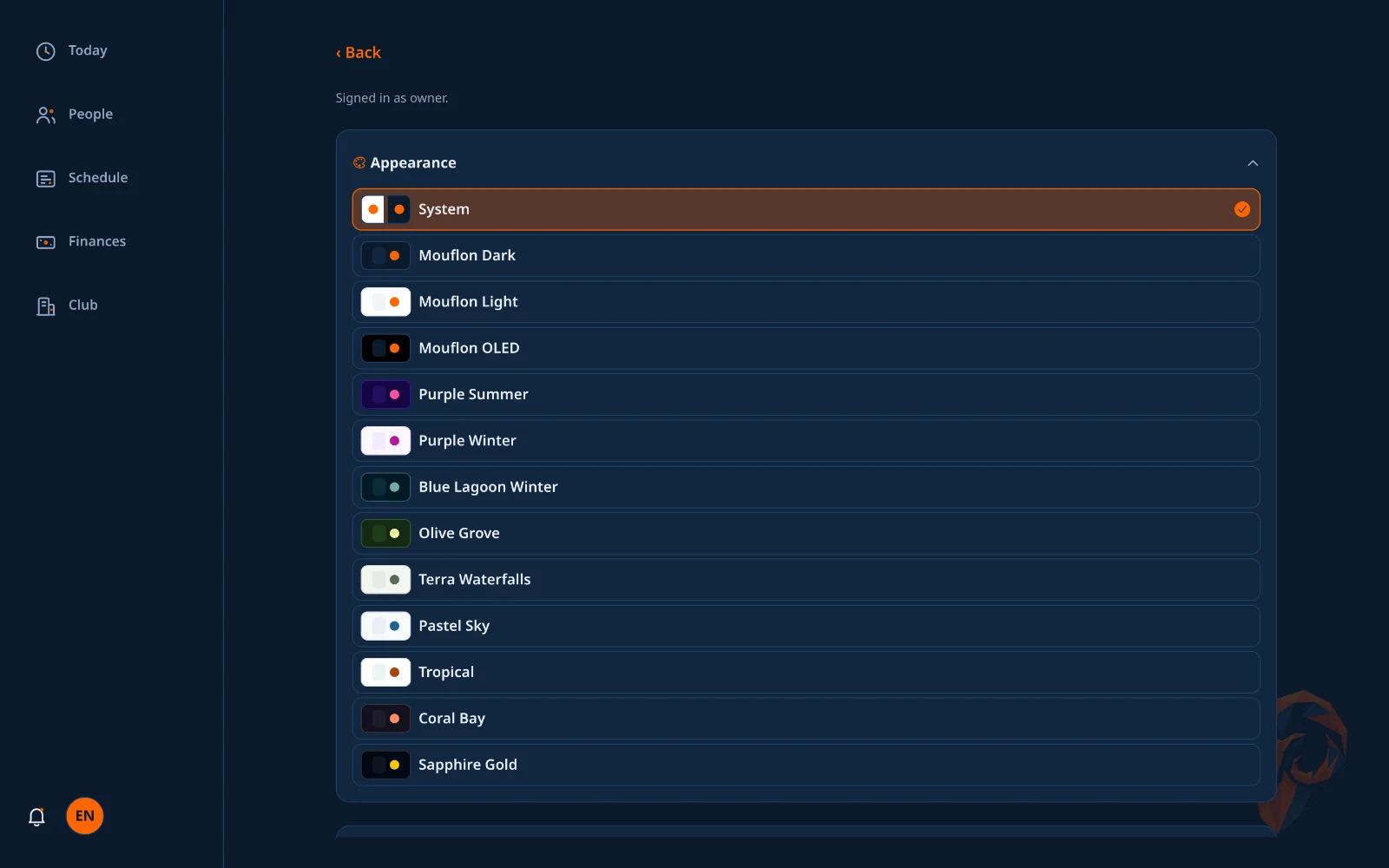
  • Appearance: twelve themes, or System.
  • Offer code: redeem a club code to upgrade the club.
  • Password and account deletion. Closing the club is separate.
Owner settings with the appearance section open, showing every theme.
Appearance, open: every theme painted in its own colors.